
Settings: Maps
Maps
This tab of the Settings dialog contains settings related to displaying maps in the main view.
General
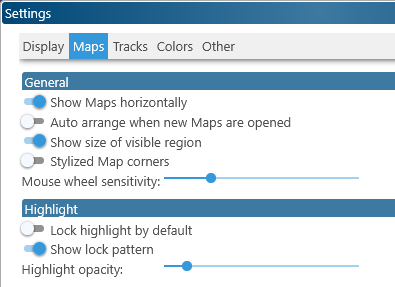
- Show maps horizontally: Changes the default orientation of maps on the screen to be horizontal or vertical; you can still rotate individual maps in the main view by selecting the appropriate item from a map's pop-up context menu.
- Auto arrange when new maps are opened: If this option is turned off, adding a new map to the screen will no longer cause all other maps to move to their default positions.
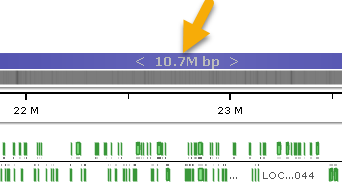
- Show size of visible region: Shows or hides the range indicator at the top of each map:
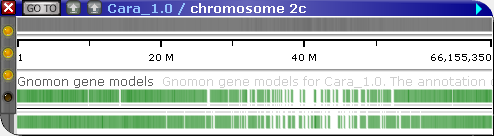
- Stylized map corners: Draws maps with rounded corners:
- Mouse wheel sensitivity: Changes the sensitivity of the mouse wheel, e.g. when spinning the wheel to zoom maps.
Highlight
These settings control the behavior of highlights on maps.
- Lock highlights by default: Turn on this option to automatically lock highlights as soon as they are saved (this does not affect temporary highlights). This can help prevent accidental modifications.
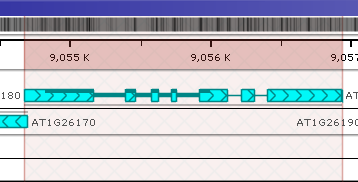

- Show lock pattern: Shows or hides the cross-hatched pattern that normally indicates that a highlight is locked. Turning off this option can be useful when creating screenshots for publication.
- Highlight opacity: Use this option to make the highlights more transparent (to make track features easier to read) or more opaque (to make the highlights themselves more prominent).
 Copyright © 2009-2026 by Persephone Software. All Rights Reserved.